Games
Command & Conquer Generals not full screen? How to fix it
On this page
Command & Conquer Generals dates from 2003, long before high-resolution laptop screens. On a modern PC (I first hit this on a Microsoft Surface) it often won’t fill the screen, and your screen’s resolution isn’t in the game’s own list of options. The fix is to type the resolution into the game’s settings file yourself. It takes a couple of minutes.
1. Find your screen resolution
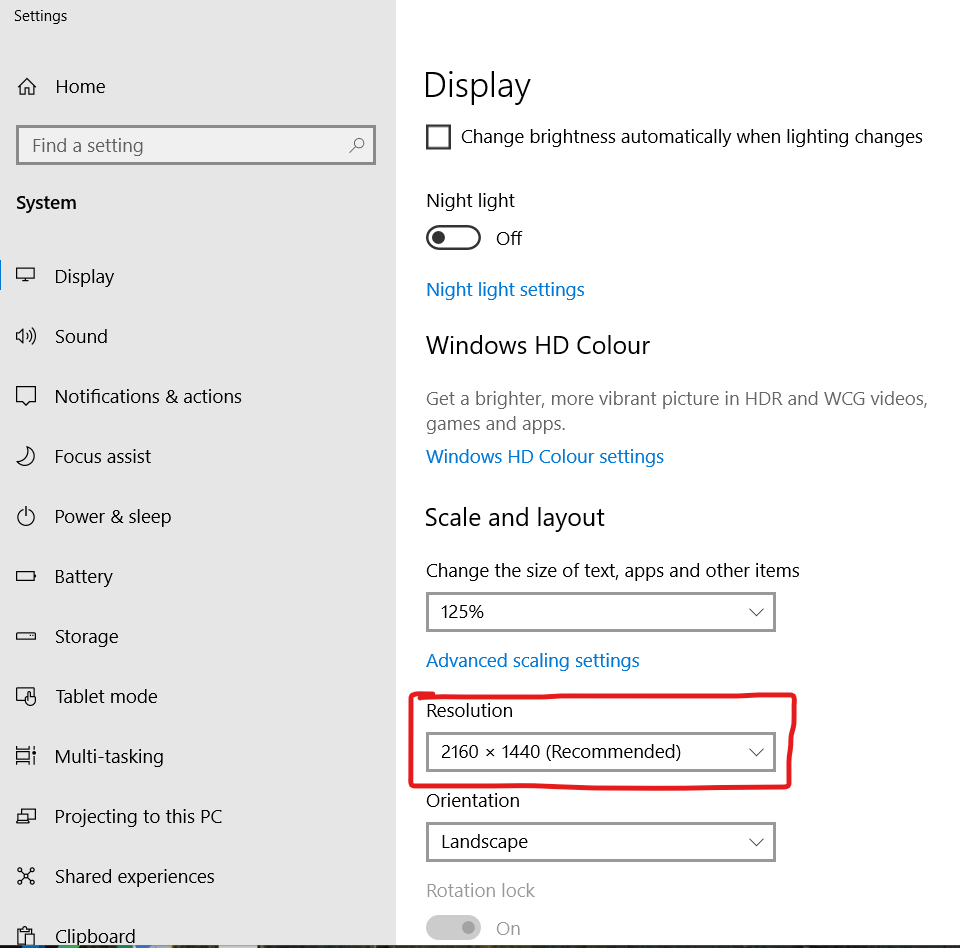
Right-click the desktop and choose Display settings. Under Display resolution (just Resolution on Windows 10), note the two numbers marked Recommended, for example 2160 × 1440.
2. Open the game’s options.ini file
Close the game first. Then open File Explorer and go to your Documents folder, then:
Command and Conquer Generals Datafor GeneralsCommand and Conquer Generals Zero Hour Datafor the Zero Hour expansion
Open options.ini in Notepad. If the file isn’t there, start the game once, change any setting in its options menu and exit, and the game creates it.
3. Change the Resolution line
Find the line that starts Resolution = and change the two numbers to match your screen, with a space between them:
Resolution = 2160 1440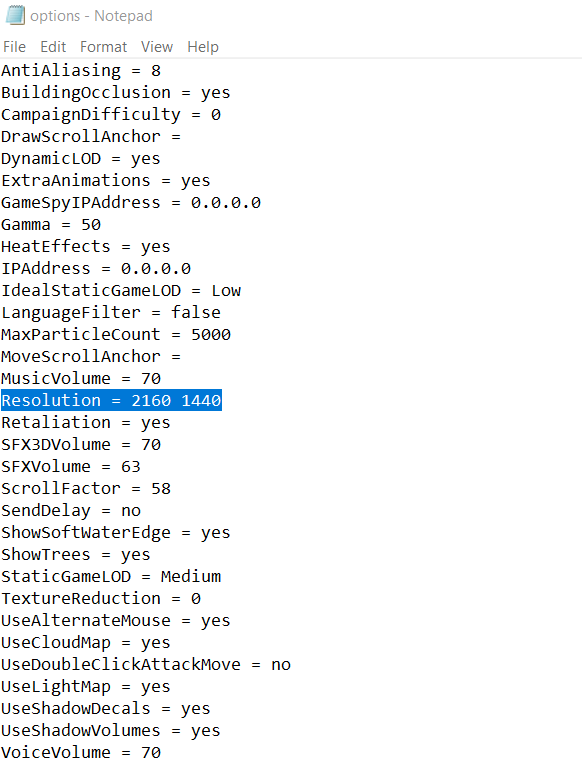
4. Save and play
Save the file and start the game. It should now fill the screen at your full resolution.
Don’t change the resolution in the game’s own options menu afterwards. Doing so overwrites the line you’ve just edited, and you’ll have to do it again.
If it still doesn’t look right
- The game window is small or blurry: right-click the game’s shortcut or .exe, choose Properties > Compatibility > Change high DPI settings, tick Override high DPI scaling behavior and set it to Application. This stops Windows scaling the game up.
- The menus are tiny: that’s the price of a 2003 game at a modern resolution. If they’re too small to use, try a lower resolution with the same shape as your screen, such as 1620 1080 for a 3:2 Surface screen or 1920 1080 for a 16:9 one.
- Your changes don’t stick: check you edited the file in the right Data folder (Generals and Zero Hour each have their own), and that it saved.